Self-managed server
If you have your own (virtual) web server you can use this guide to install the Firefly III Data Importer. You may have some ingredients prepared already.
Please install Firefly III first.
Ingredients
These PHP packages should already be installed, because you installed Firefly III. Nevertheless, here they are:
- PHP BCMath Arbitrary Precision Mathematics
- PHP JSON
You can search the web to find out how to install these modules. Some may be installed already depending on your system. Use phpinfo() or php -i to find out.
Installing the Data Importer
Installing by pulling the remote repository
It's no longer possible to install the data importer by pulling the code from the main or develop branch of the repository. Generated (JS) code and other dependencies are not in the repository, so your new installation may not work as expected.To do so manually, please review this FAQ question
Main command
v2.2.3 is the latest version.
- Download the latest release as a
zipfile from GitHub. - Download the latest release as a
tar.gzfile from GitHub.
It is up to you, if you prefer the tar.gz file or the zip file.
Validate the downloaded file
Optionally, you can validate and test the integrity of your download by also downloading the SHA256 checksum file.
With this SHA256 checksum file, you can verify the integrity of the download by running the following command:
# Should return: "DataImporter-v2.2.3.zip: OK"
sha256sum -c DataImporter-v2.2.3.zip.sha256
sha256sum -c DataImporter-v2.2.3.tar.gz.sha256

# alternative command:
shasum -a 256 -c DataImporter-v2.2.3.zip.sha256
shasum -a 256 -c DataImporter-v2.2.3.tar.gz.sha256
Extract the file
Extract the downloaded file in your web server's root directory, or in a specific directory you want to use.
# the directory name is up to you, of course:
mkdir /var/www/data-importer
unzip DataImporter-v2.2.3.zip -d /var/www/data-importer

# the tar.gz file extracts with the following command.
tar -xvf DataImporter-v2.2.3.tar.gz -C /var/www/data-importer
Some servers require sudo to extract or change things in the /var/www directory. if this is the case for you, make sure you reset the access rights after wards:
# the directory name is up to you, of course:
sudo -u www-data mkdir /var/www/data-importer
sudo -u www-data unzip DataImporter-v2.2.3.zip -d /var/www/data-importer

# alternative command for the tar.gz file:
sudo tar -xvf DataImporter-v2.2.3.tar.gz -C /var/www/data-importer

sudo chown -R www-data:www-data /var/www/data-importer
sudo chmod -R 775 /var/www/data-importer/storage
This should get you the entire installation in the directory of your choice.
Web server configuration
Most servers will serve files from the /var/www directory. The data importer would be served from /data-importer/public. This is not really what you would want to do.
You can look up for your webserver (Apache or nginx) how to change the root directory or how to set up virtual hosts.
Data Importer configuration
In the directory where you just unzipped the data importer you will find a .env.example file. Rename or copy it to .env.
Open this file using your favorite editor. There are instructions what to do in this file.
Make your life easier by configuring the FIREFLY_III_URL and possibly the FIREFLY_III_ACCESS_TOKEN variable.
To run the data importer behind a reverse proxy, set the TRUSTED_PROXIES environment variable to either * or the IP address of your reverse proxy.
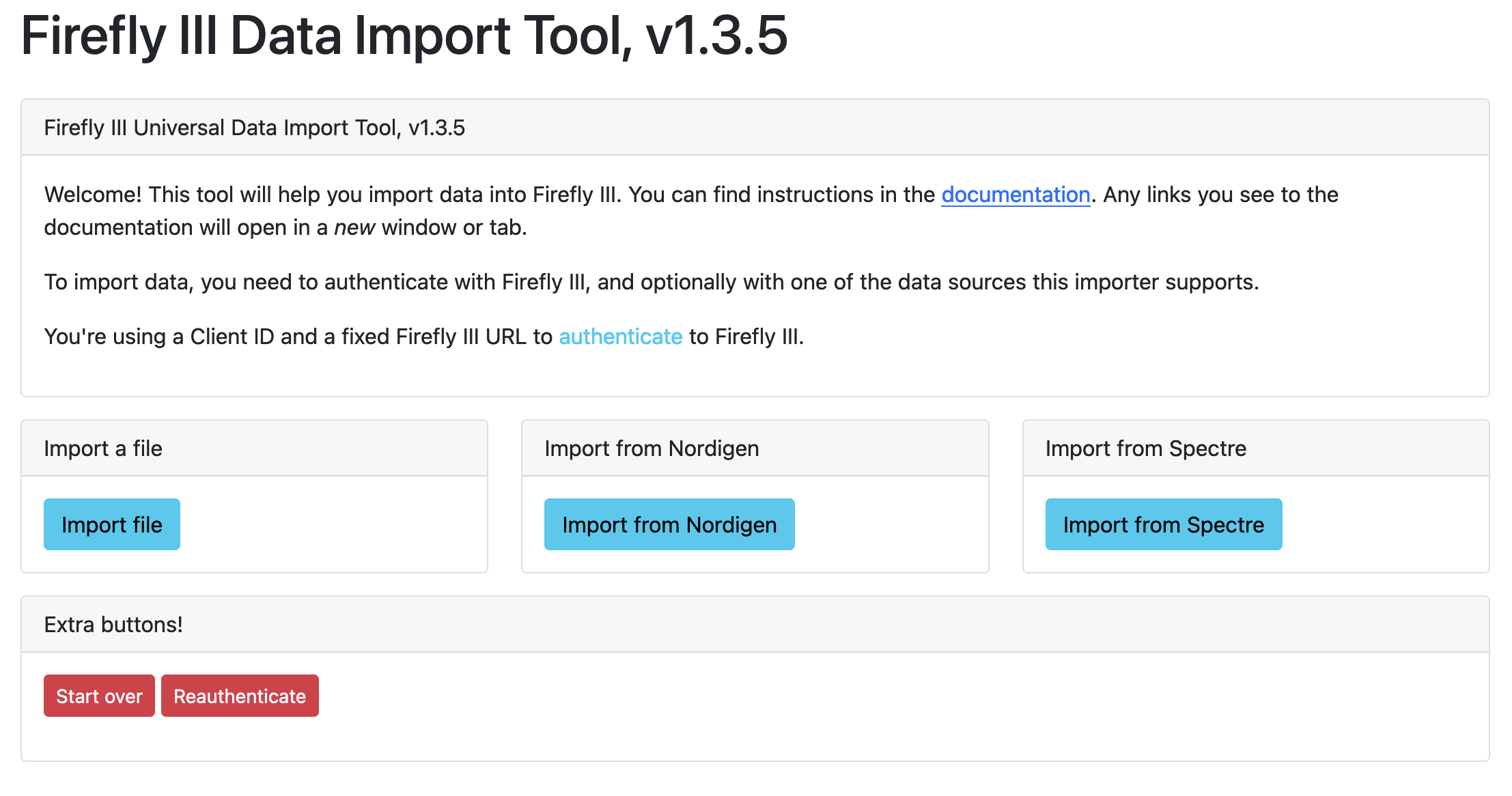
Now you should be able to visit http://localhost/data-importer/public and see the Firefly III data importer.
It doesn't work!
This manual can't list all the possible exceptions and errors you may run into. Some common issues are documented in the FAQ.
Look in these directions when you're running into problems:
- Apache may not have mod_rewrite enabled or the htaccess file isn't activated (
AllowOverride). - Nginx may not have the correct
try_filesinstruction in thelocationblock. To enable TLS in the data importer, your reverse proxy must be configured correctly. Find more information in the Frequently Asked Questions.
Visiting the data importer
Check out the tutorial on how to import CSV files.
Need help?
If something did not go as expected, please browse to the Frequently Asked Questions or the Support pages.