How to use different authentication
By default, Firefly III uses a basic system that allows users to register and login locally. This is based on the user's email address.
See also how to make Firefly III multi-user.
Two-step authentication
Two-step authentication, or two-factor authentication (2FA) asks you for an extra code to enter. This adds security, so even when you lose your password your account is still protected.
You can enable it in your profile.
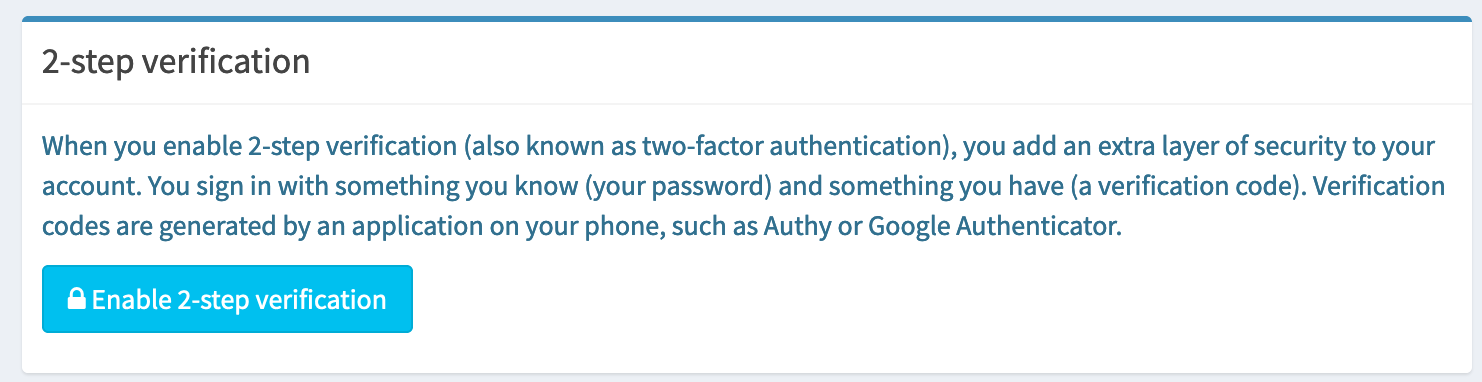
If you enable 2FA, you will also see eight backup codes that you should save just in case you lose access to your Authenticator app.
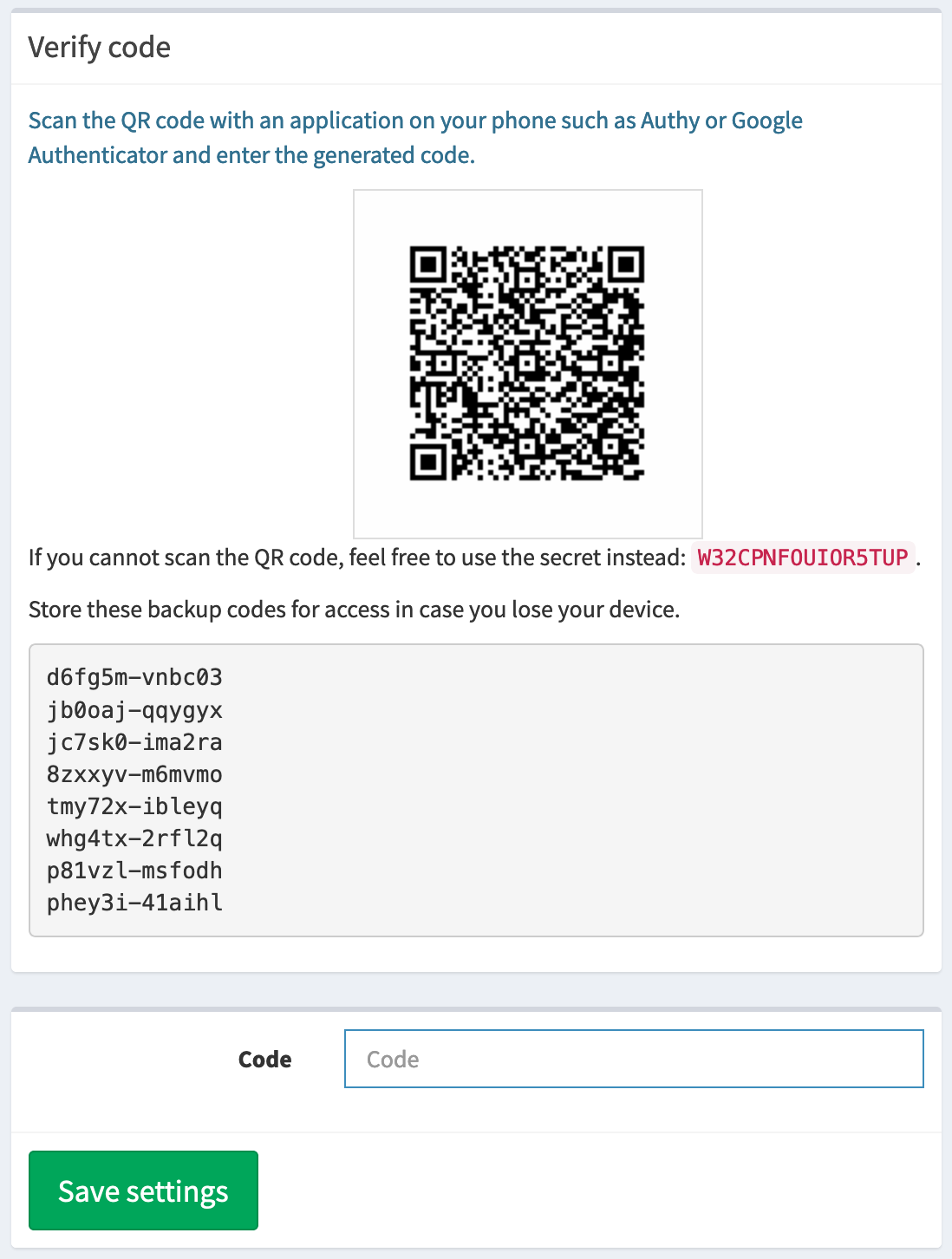
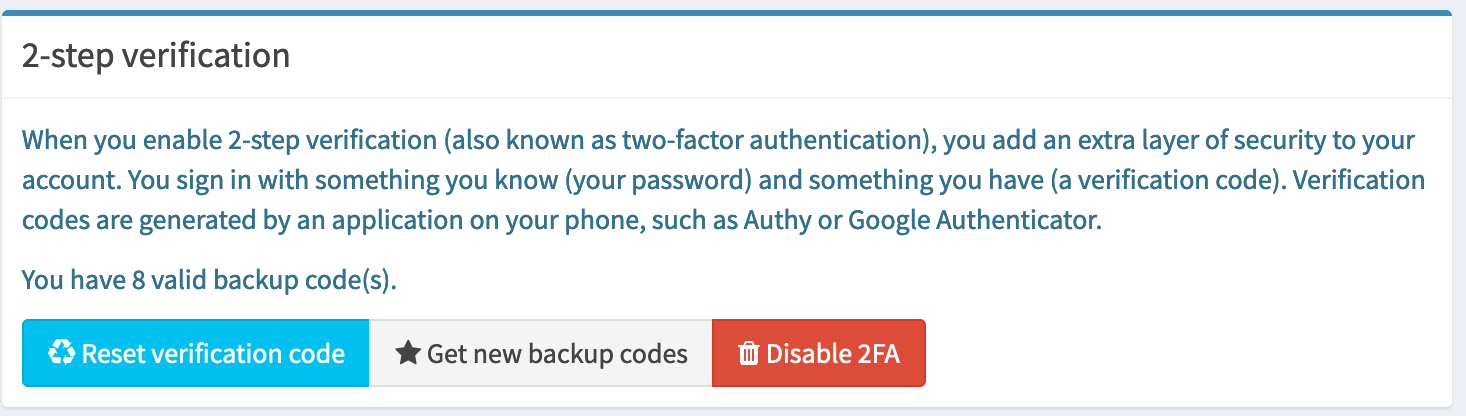
To confirm your 2FA settings, submit a code from your Authenticator app twice. You may have to wait 30 seconds. In your settings, you will see the upgraded status for 2FA:
If you lose access to your 2FA data, anybody with access to the database can turn it off and get you back in. Please check out the FAQ.
Remote user authentication
Firefly III supports RFC 3875 which means your users can authenticate using the REMOTE_USER header. When you enable this method, an authentication proxy in front of Firefly III MUST be set up to care of the user's login and authentication. This lets you use advanced login methods like hardware tokens, single sign-on, fingerprint readers and more. Once the authentication proxy says you're logged in, it will forward you to Firefly III.
A very popular tool that can do this Authelia.
Warning
When Firefly III is set up for remote user authentication, it will do absolutely NO checks on the validity of the header or the contents. Firefly III will not ask for passwords, it won't check for MFA, nothing. All authentication is delegated to the authentication proxy and Firefly III just doesn't care anymore.
Be sure to turn off MFA in Firefly III, because that will remain in place.
Enable the remote user option
To enable this function change the AUTHENTICATION_GUARD environment variable to remote_user_guard.
Set the AUTHENTICATION_GUARD_HEADER to the HTTP header that will contain the user's identifier (usually the email address or a username). If the identifier is not the email address, please set AUTHENTICATION_GUARD_EMAIL to the HTTP header that will contain the user's email address
How it works
Once you're authenticated by the proxy Firefly III will receive the request with your user ID in the REMOTE_USER header. Firefly III will then log you in.
The guard header was unexpectedly empty
As a troubleshooting step, try setting the AUTHENTICATION_GUARD_HEADER environment variable to HTTP_REMOTE_USER. If this doesn't work, unset the AUTHENTICATION_GUARD_HEADER environment variable and make the change below.
The header must be forwarded to Firefly III. For example, add the following lines to public/.htaccess.
This is less than optimal when you're using the Docker image but if the header is sent to your reverse proxy and not to Firefly III directly, it may be necessary to make such a change.
Another remote user header
If you are able to customize your authentication system to send a header other than REMOTE_USER to Firefly III, then set the AUTHENTICATION_GUARD_HEADER environment variable to the PHP name of that header. For example, if the custom header is FFIII-User, then set AUTHENTICATION_GUARD_HEADER to HTTP_FFIII_USER. Another benefit of using a custom header is that you do not need to change the public/.htaccess file as mentioned above.
Firefly III uses email addresses as user identifiers. When you're using an external authentication guard that does not do this, Firefly III is incapable of emailing you.
If the user's email address is also available through a different HTTP header, then set the AUTHENTICATION_GUARD_EMAIL environment variable to the PHP name of that header. For example, if the custom header is FFIII-Email, then set AUTHENTICATION_GUARD_EMAIL to HTTP_FFIII_EMAIL