Enable Banking
Enable Banking is a European open banking aggregator that connects to 2500+ banks across 29 European countries using official PSD2 APIs. This tutorial guides you through setting up Enable Banking with the Firefly III Data Importer.
Enable Banking offers a free restricted mode that allows you to access your own bank accounts without a paid subscription. In this mode, you can only access accounts that you have previously linked in the Enable Banking portal. This is perfect for personal finance management with Firefly III.
Restricted Mode Limitations
In restricted mode, you will only be able to access bank accounts that you have explicitly linked in the Enable Banking portal. If you skip the account linking step, no accounts will be returned during import.
Create an Enable Banking account
- Go to enablebanking.com and click "Get Started"
- Fill in the registration form with your details
- Wait for a confirmation email from Enable Banking (this may take some time)
- Once you receive the email, follow the instructions to access your Enable Banking Control Panel
Create an application
In the Enable Banking Control Panel, you need to create an application that will be used to connect to your bank accounts.
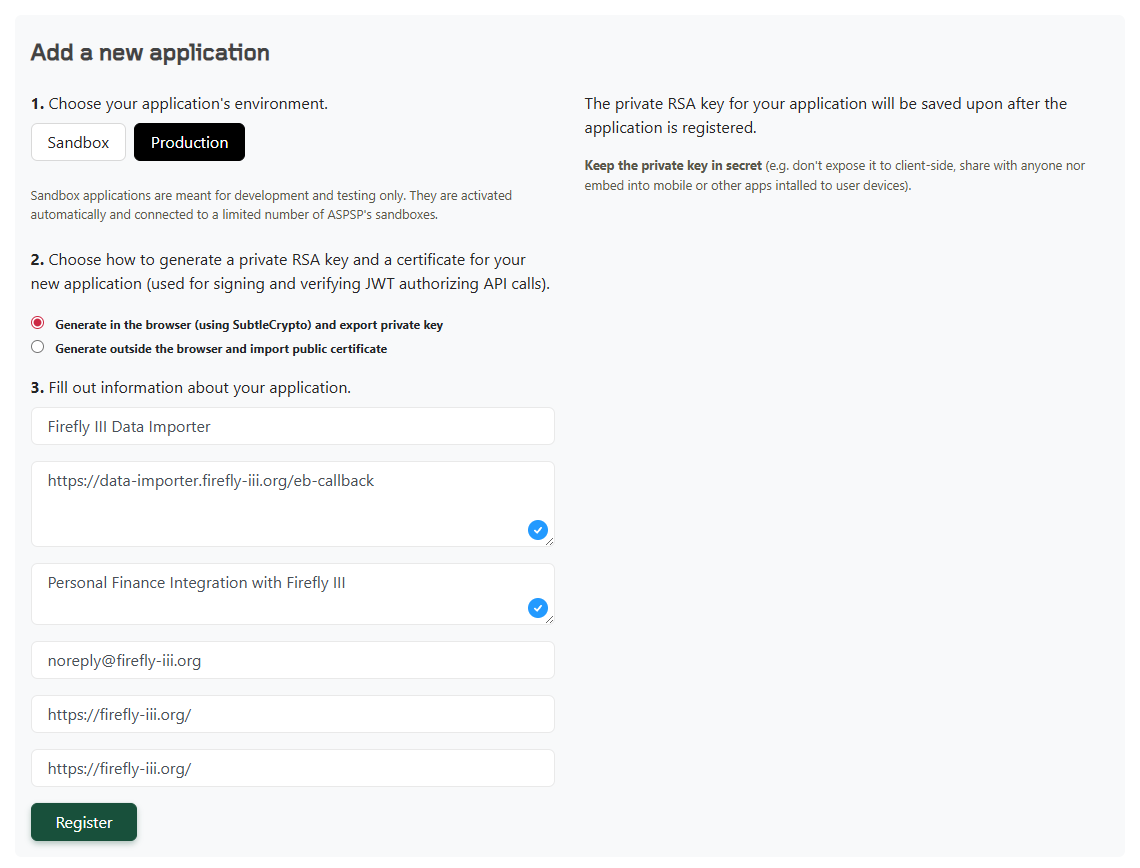
- Navigate to "API Applications" in the top menu
- Fill the "Add a new application" form:
- Environment: Select "Production" (not Sandbox) if you want to access real bank data
- Private key generation: Keep the default option "Generate in the browser (using SubtleCrypto) and export private key"
- Application Name: Give it a descriptive name like "Firefly III Data Import"
- Allowed Redirect URLs: Enter
https://<YOUR_DATA_IMPORTER_URL>/eb-callback - Description: A brief description of your application (e.g., "Personal finance import")
- Email for data protection matters: Your email address
- Privacy Policy URL: Enter your Data Importer root URL (e.g.,
https://<YOUR_DATA_IMPORTER_URL>/) - Terms of Service URL: Enter your Data Importer root URL (e.g.,
https://<YOUR_DATA_IMPORTER_URL>/)
Privacy and Terms URLs
In Restricted mode, the Privacy Policy and Terms of Service URLs are not validated. You can use your Data Importer's root URL as a placeholder.
Redirect URL Requirements
Production environment requires HTTPS, but the Sandbox environment works with HTTP. Replace <YOUR_DATA_IMPORTER_URL> with your actual Data Importer URL, for example: https://importer.example.com/eb-callback. You can find your callback URL on the /authenticate-flow/eb page of your data importer. The URL does not have to be public.
- Upon submission, your browser will automatically download a PEM file containing your private key. Save this file securely; you will need it later.
- Note your Application ID (also called Client ID); this is displayed in the Control Panel.
Link your bank accounts (required for free plan)
This is the most important step for using the free restricted mode.
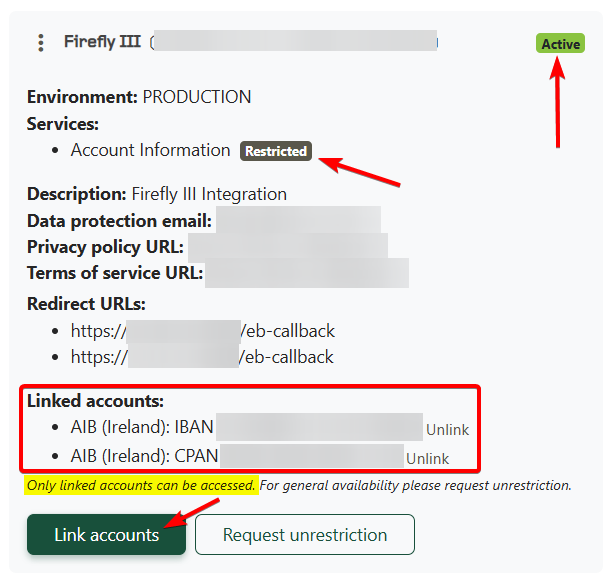
- In your Enable Banking Control Panel, find your newly created application
- Click the "Link accounts" button
- Connect to your bank and authorize access to your accounts
Do Not Skip This Step
If you do not link your bank accounts in the Enable Banking portal before attempting to import, the Data Importer will not receive any accounts. Enable Banking will NOT return bank accounts in restricted mode which have not been previously authorized.
After linking your accounts, your application will show as "Restricted" but "Active" in the Control Panel. This is expected and indicates that the application is limited to pre-authorized accounts only, but you are good to go.
Configure the data importer
You have two options for providing your Enable Banking credentials to the Data Importer.
Option A: environment variables
Set the following environment variables in your Data Importer configuration. Depending on your setup, you may need to edit .importer.env or configure them in Docker.
#
# example content if your .importer.env
#
ENABLE_BANKING_APP_ID=your_application_id_here
ENABLE_BANKING_PRIVATE_KEY="-----BEGIN PRIVATE KEY-----\n.......your_private_key_contents_here.....\n-----END PRIVATE KEY-----"
To get the PEM contents, open the downloaded PEM file with a text editor and copy the entire contents, including the BEGIN and END lines. To make sure it works in your .importer.env, follow these instructions. You will end up with your key just like the example earlier
First, remove ALL newlines from the private key, so it becomes one long line and two dividers. Do not add \n or whatever. Make it one big continuous long string:
#
# Intermediate step, this is not the final result.
#
-----BEGIN PRIVATE KEY-----
......................................................................etc
-----END PRIVATE KEY-----
Then, add \n, two times. One after -----BEGIN PRIVATE KEY----- and one before -----END PRIVATE KEY-----. Also remove the actual enters. This should be the result:
#
# Intermediate step, see how it is one line combines with 2x \n now?
#
-----BEGIN PRIVATE KEY-----\n................\n-----END PRIVATE KEY-----
Add this line to your environment variables. If you use the .importer.env file, add "quotes" around it.
#
# See how the "quotes" and newlines are combined to create a key. Instead of the dots it's your key of course.
#
ENABLE_BANKING_PRIVATE_KEY="-----BEGIN PRIVATE KEY-----\n................\n-----END PRIVATE KEY-----"
Let me know if this works!
Multi-line environment variable
If your environment does not support multi-line values, you can often use \n to represent newlines, or store the PEM file path instead and mount it as a volume in Docker.
Option B: Enter credentials in the UI
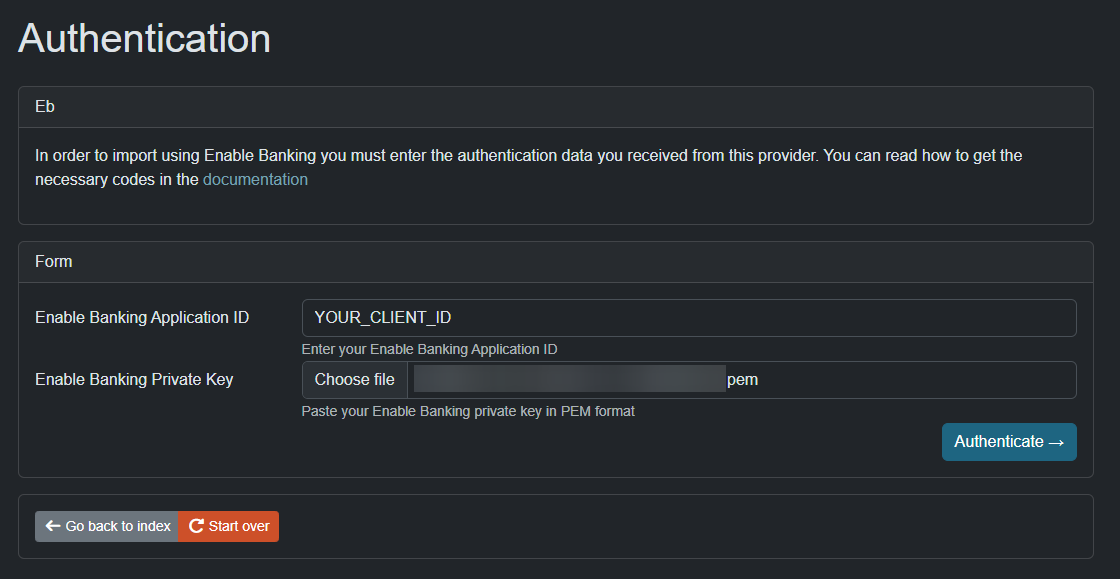
When you select Enable Banking as the import method in the Data Importer, you can enter the Client ID and upload the PEM file directly. This works but is less convenient as you need to provide these each time.
Start the import
- Open the Data Importer and authenticate with Firefly III if prompted
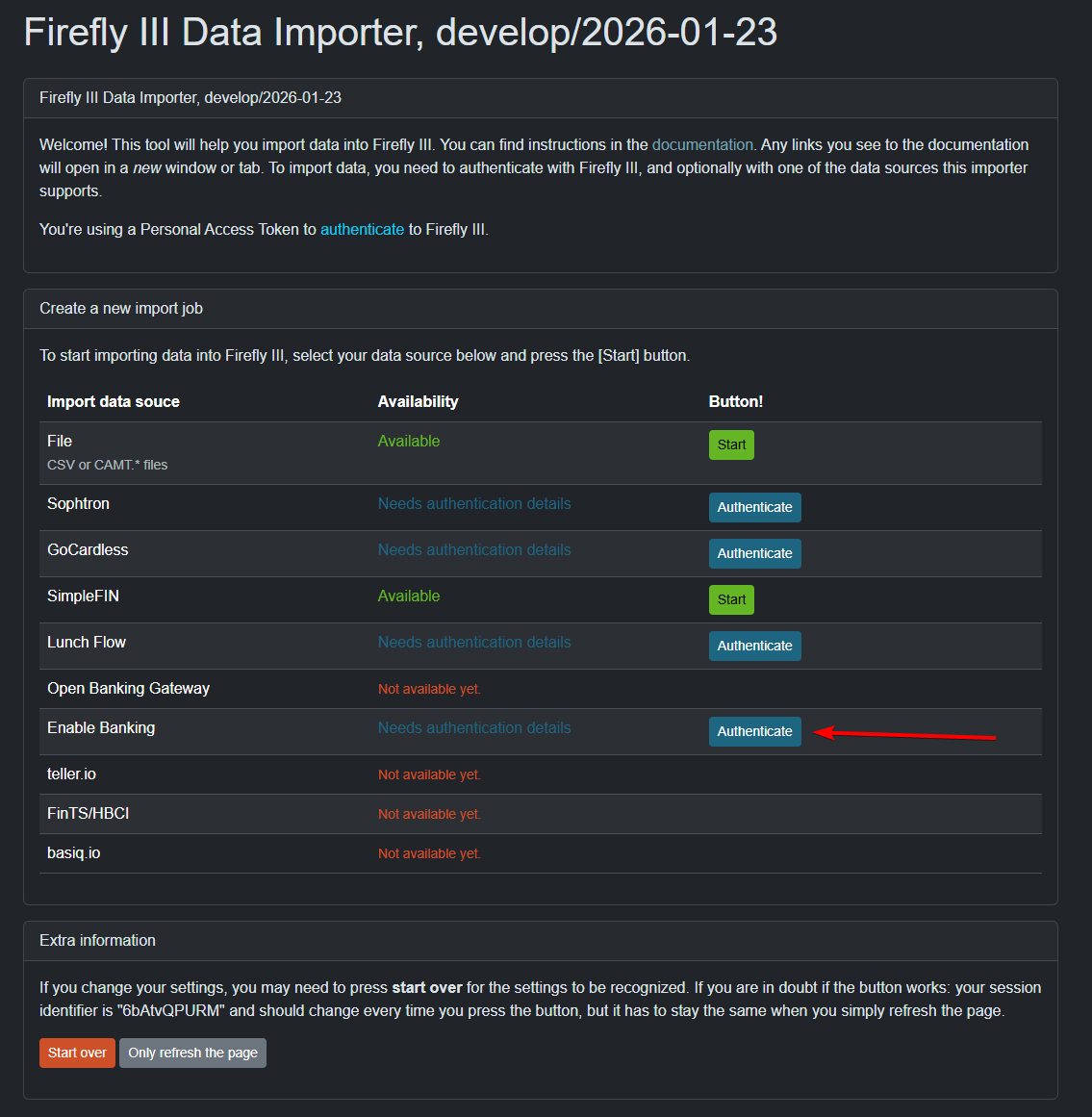
- Select Enable Banking as the import method
- If credentials are not set via environment variables, enter your Client ID and upload the PEM file
- Upload a configuration file if you have one from a previous import (optional)
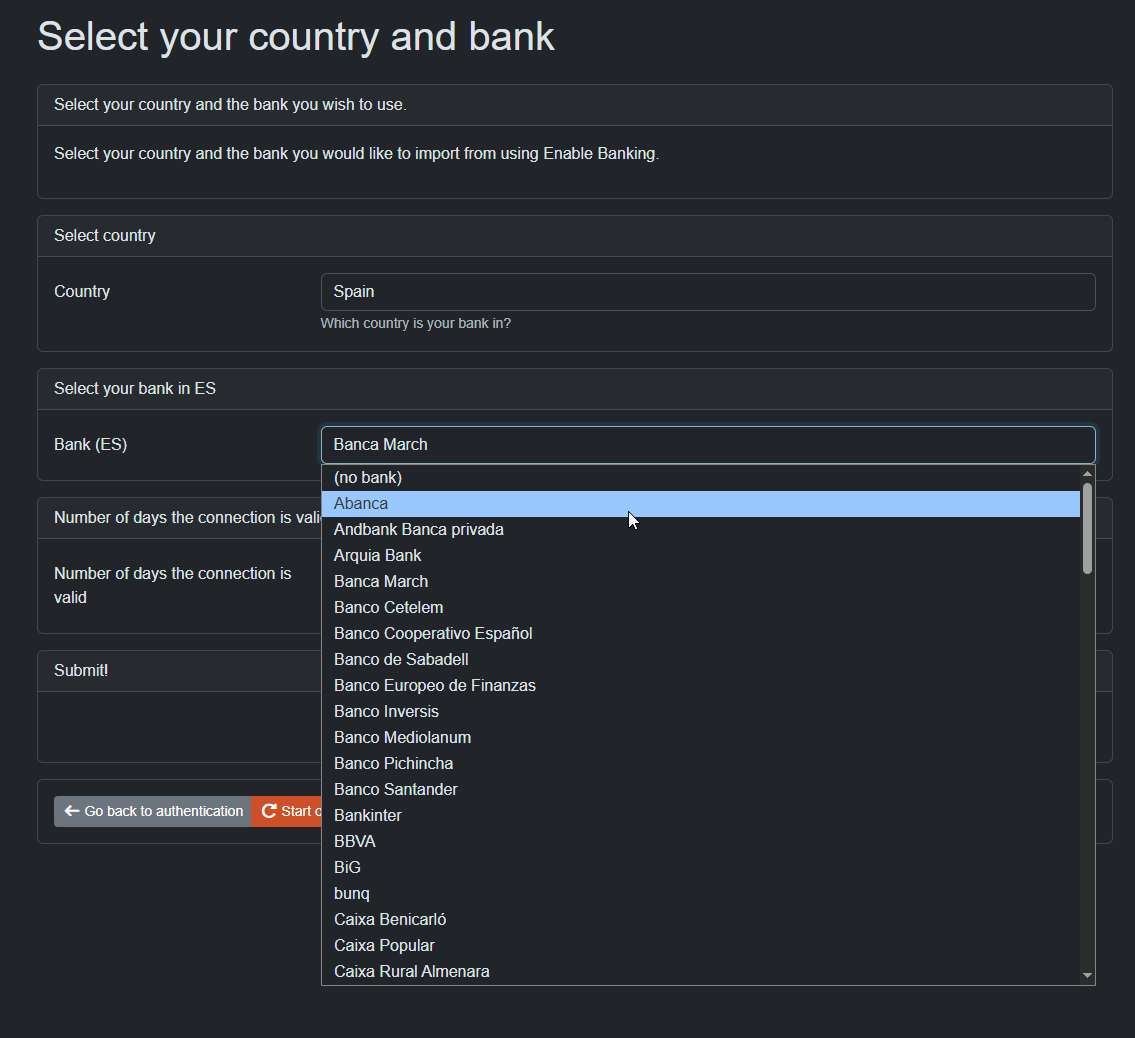
Select country and bank
- Select your country from the dropdown list
- Select your bank from the list of available institutions
Unlike other providers, Enable Banking only displays banks that are available for the selected country. If your bank is not listed, it may not be supported by Enable Banking in your region.
Authorize access
After selecting your bank, you will be redirected through two authorization steps:
- Enable Banking authorization: Review and accept the terms
- Bank authorization: Log in to your bank and authorize the data access
After completing both authorizations, you will be redirected back to the Data Importer.
No Accounts Returned?
If you are redirected back but no bank accounts appear, this is because the accounts were not pre-authorized in Step 3. Go back to the Enable Banking portal and link your accounts first.
Configure the import
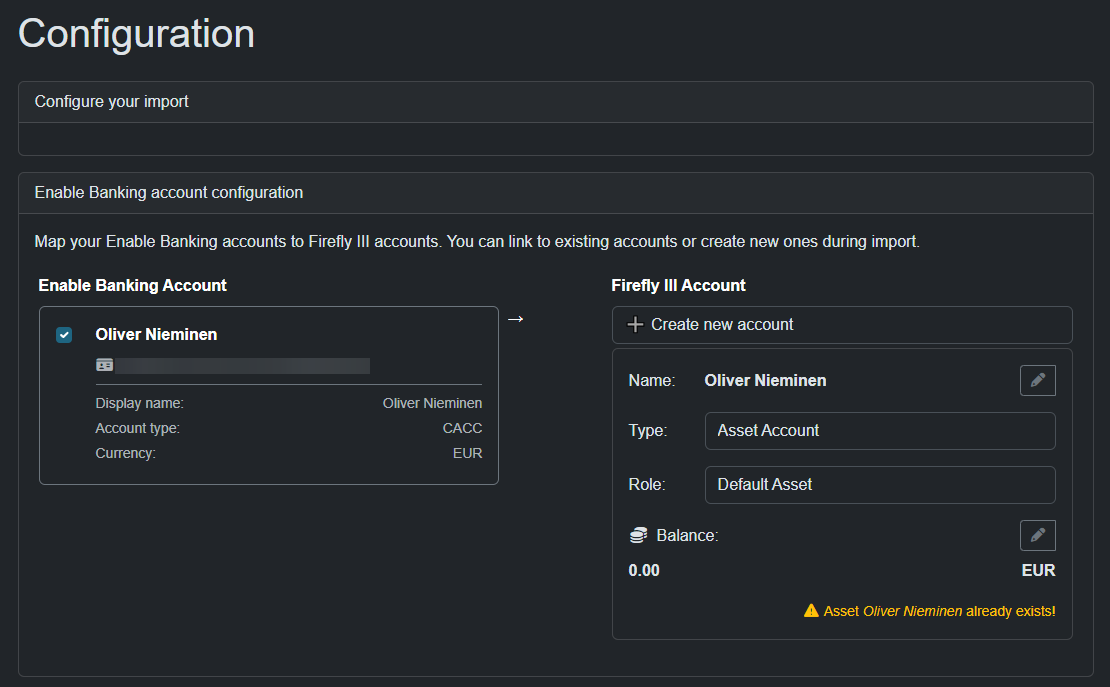
Select accounts
Choose which bank accounts to import from and map them to your Firefly III asset accounts. If an IBAN matches an existing account, the selection may be automatic.
Date range
You can limit the import to a specific date range:
- Import everything: Fetch all available transaction history
- Go back a number of days/weeks/months: Only import recent transactions
- Select a specific range: Define exact start and end dates
Import options
- Rules: Enable this to apply your Firefly III rules to imported transactions
- Import tag: Add a tag to group all transactions from this import
- Duplicate detection: Choose how to handle potential duplicate transactions (content-based detection is recommended)
Map data (Optional)
If you enabled data mapping, you can connect the merchants and payees from your transactions to existing accounts in Firefly III. This is useful when:
- You already have expense accounts set up in Firefly III
- You have transfers between your own accounts that should be linked correctly
Submit to Firefly III
Click "Start Job" to submit the transactions to Firefly III. The import process will run, and you will see a summary when complete.
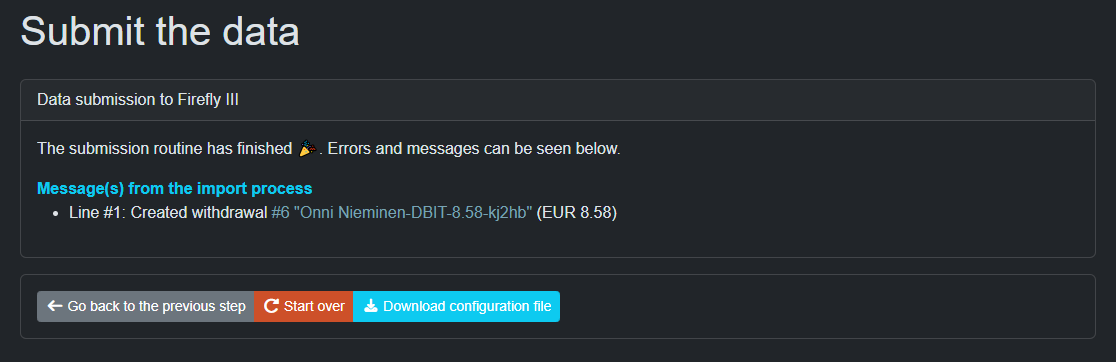
Once complete, save your configuration file for future imports.
Troubleshooting
No accounts are returned after bank authorization
This is the most common issue. Make sure you have linked your bank accounts in the Enable Banking portal (Step 3) before attempting to import. In restricted mode, only pre-authorized accounts are accessible.
Authorization fails or times out
- Verify your redirect URL is correctly configured in the Enable Banking portal
- Ensure you are using HTTPS for production environments
- Check that your PEM file is valid and matches your application
Invalid credentials error
- Double-check your Client ID matches the one in the Enable Banking portal
- Verify the PEM file contents are complete, including the header and footer lines
- If using environment variables, ensure there are no extra spaces or encoding issues
References
For more information about Enable Banking:
Community discussions about the free "own accounts" plan: