Manage a subscription
Tip
I've not yet finished writing this tutorial. Some items may not be filled in yet. I apologize for the inconvenience. Please refer to the support page if you have questions.
You can use subscriptions to track regular income from your accounts to any third party. To read more about subscriptions, see also:
Create your first subscription
In the left-hand menu, go to Subscriptions, and press "Create new subscription". You can also use the right-hand menu, where you can press "Create subscription".
In either case, you see this screen:
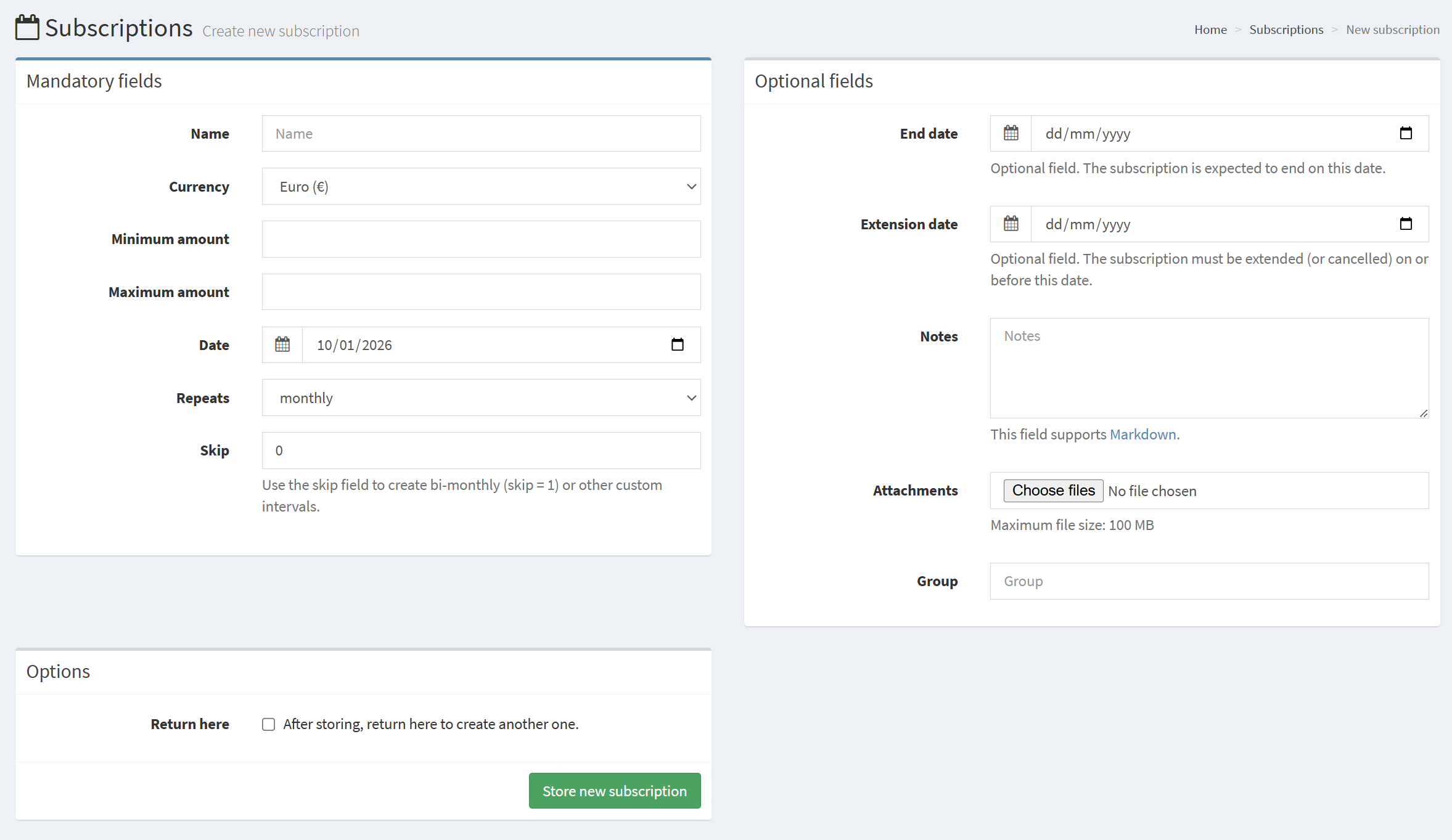
Fill in the name and the minimum and maximum amounts of the subscription. The actual amount of a transaction linked to this subscription is always allowed to be more or less, but Firefly III will use the average of these two amounts as the expected amount when calculating expected spending for each period.
Be sure to indicate when you expect this subscription to arrive for the first time. If this subscription is already running you can also add a date in the past. The important thing is that Firefly III knows on which day of the period the subscription is supposed to arrive. On the next line, you indicate how often the subscription arrives. The default is "monthly" but you see a few options.
To set a subscription bi-weekly, or every 3 days, use the "skip"-field. For a bi-weekly subscription, fill in 1.
The optional fields on the right allow you to give the subscription an end date and an extension date. If you set up notifications according to how to set up notifications, Firefly III will warn you about the subscription's expiry/extension date. You can also add a group to your subscription. Any group that doesn't exist yet will be created.
Create a rule
If you press "Store new subscription" you get redirected to the form to create a new rule. You can read about this on the page how to manage rules.
For this tutorial, we will skip this step. In the left-hand menu, click Subscriptions again.
See it in the overview
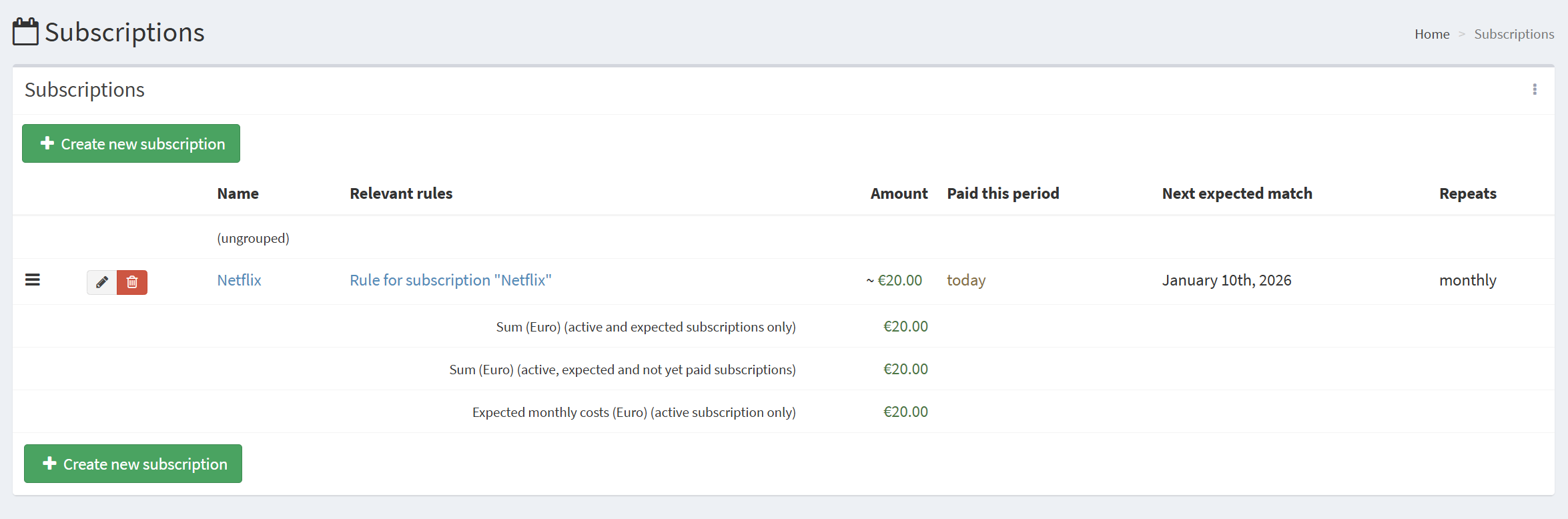
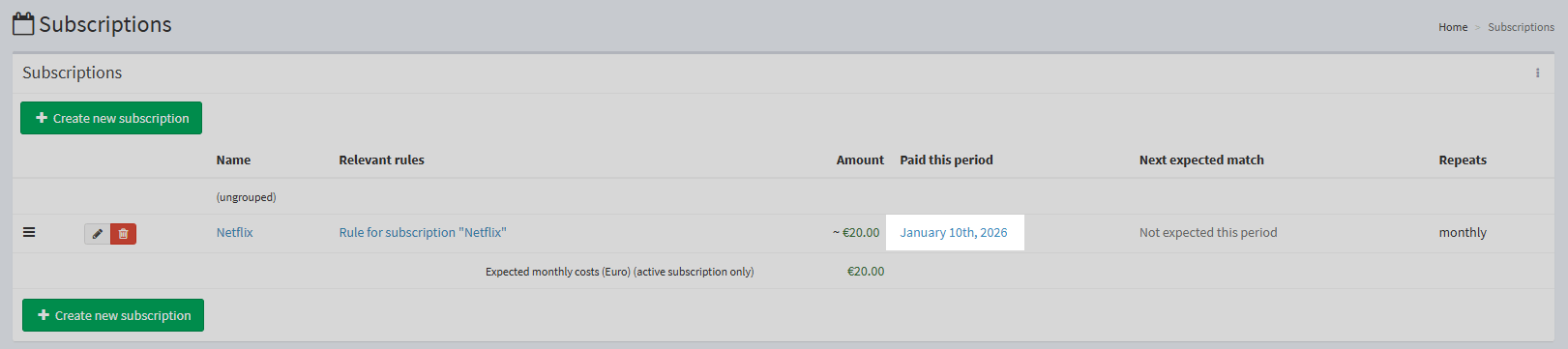
In the overview, you will see your just-created subscription. It will look something like this:
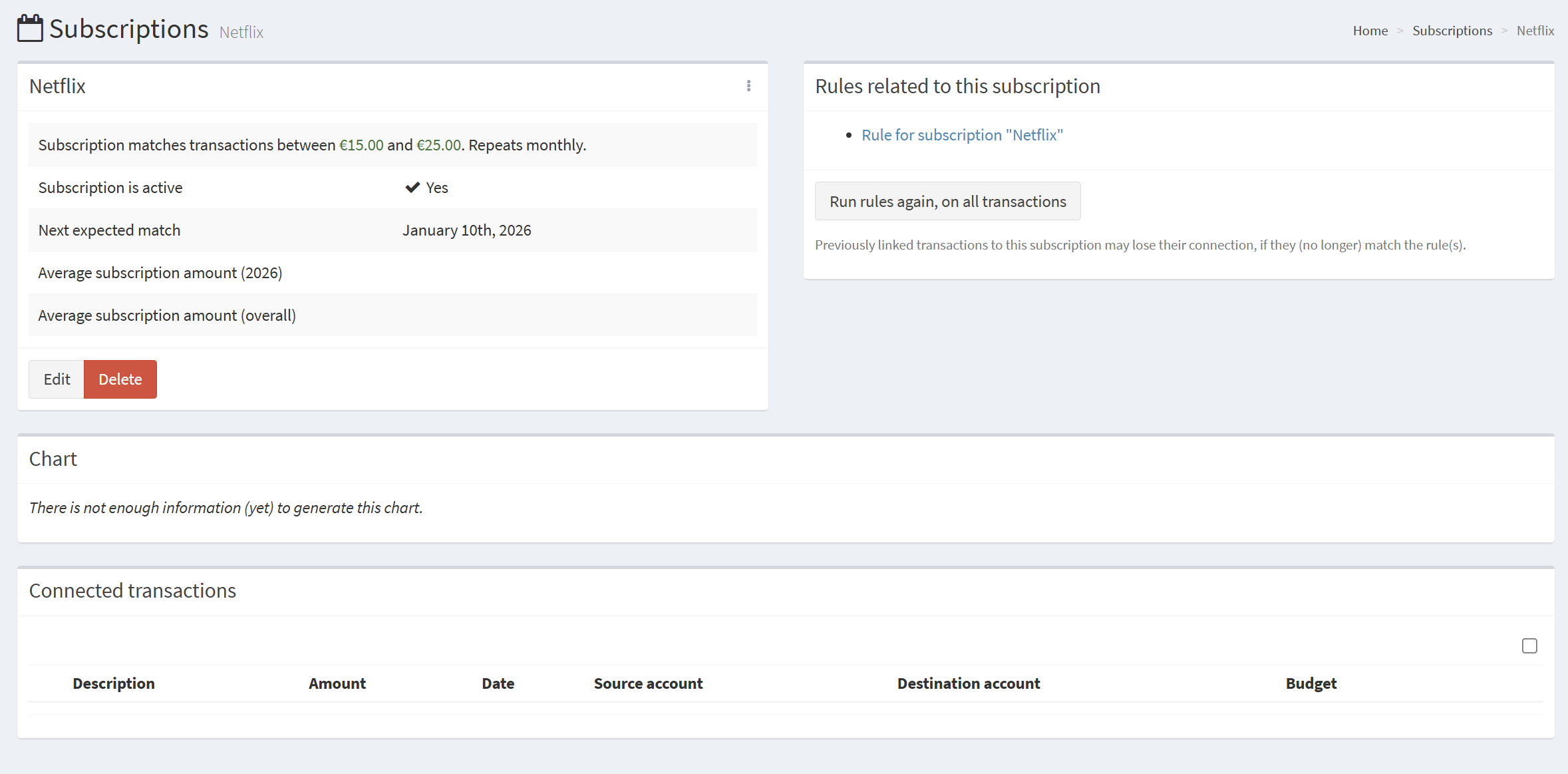
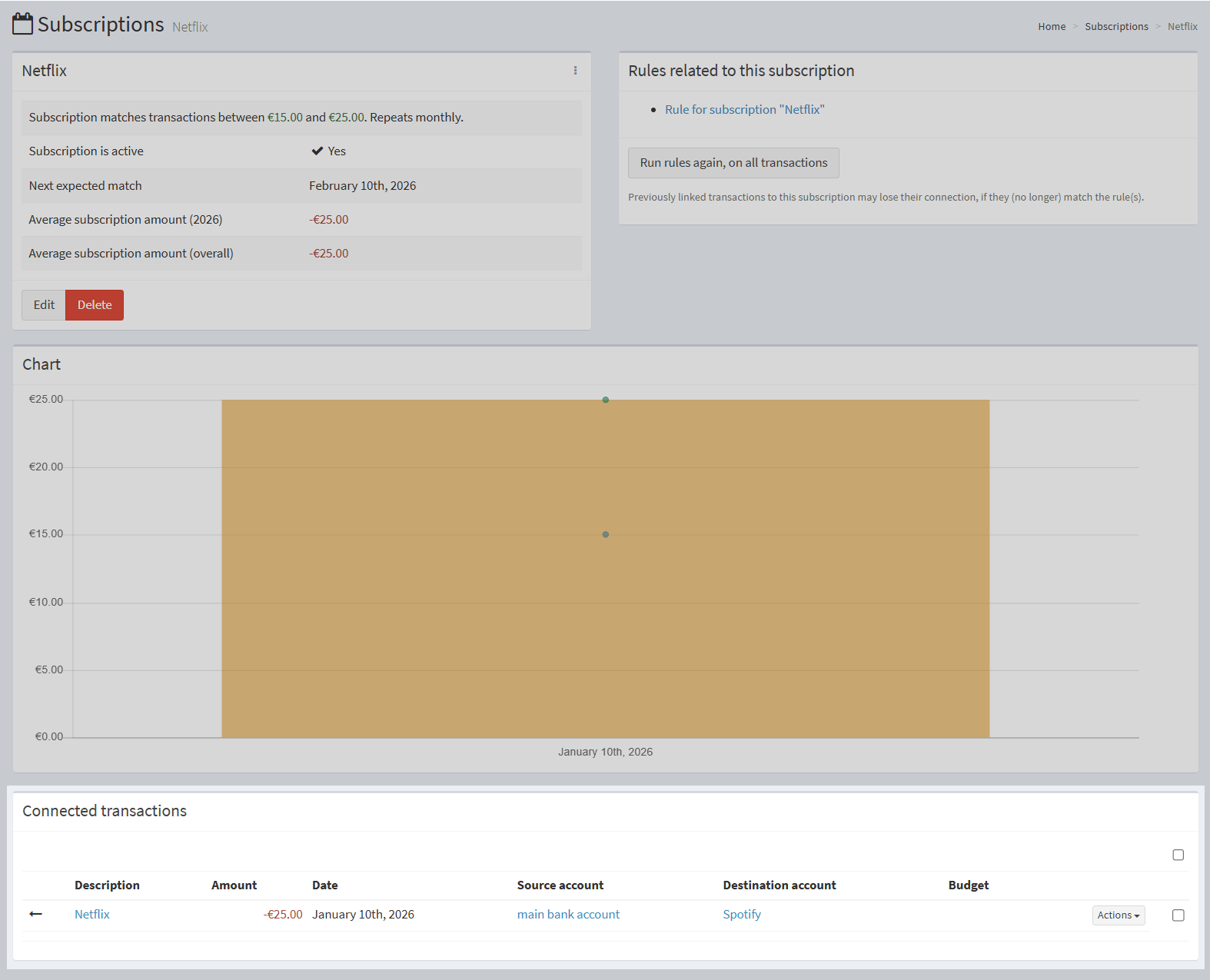
If you click it, you will see the details of the subscription:
On the home page the subscription is also visible:

Link a transaction
Now, if you make a withdrawal you can select the subscription to be linked to the transaction. Note that this will not work for transfers or deposits. You can only link subscriptions to withdrawals.
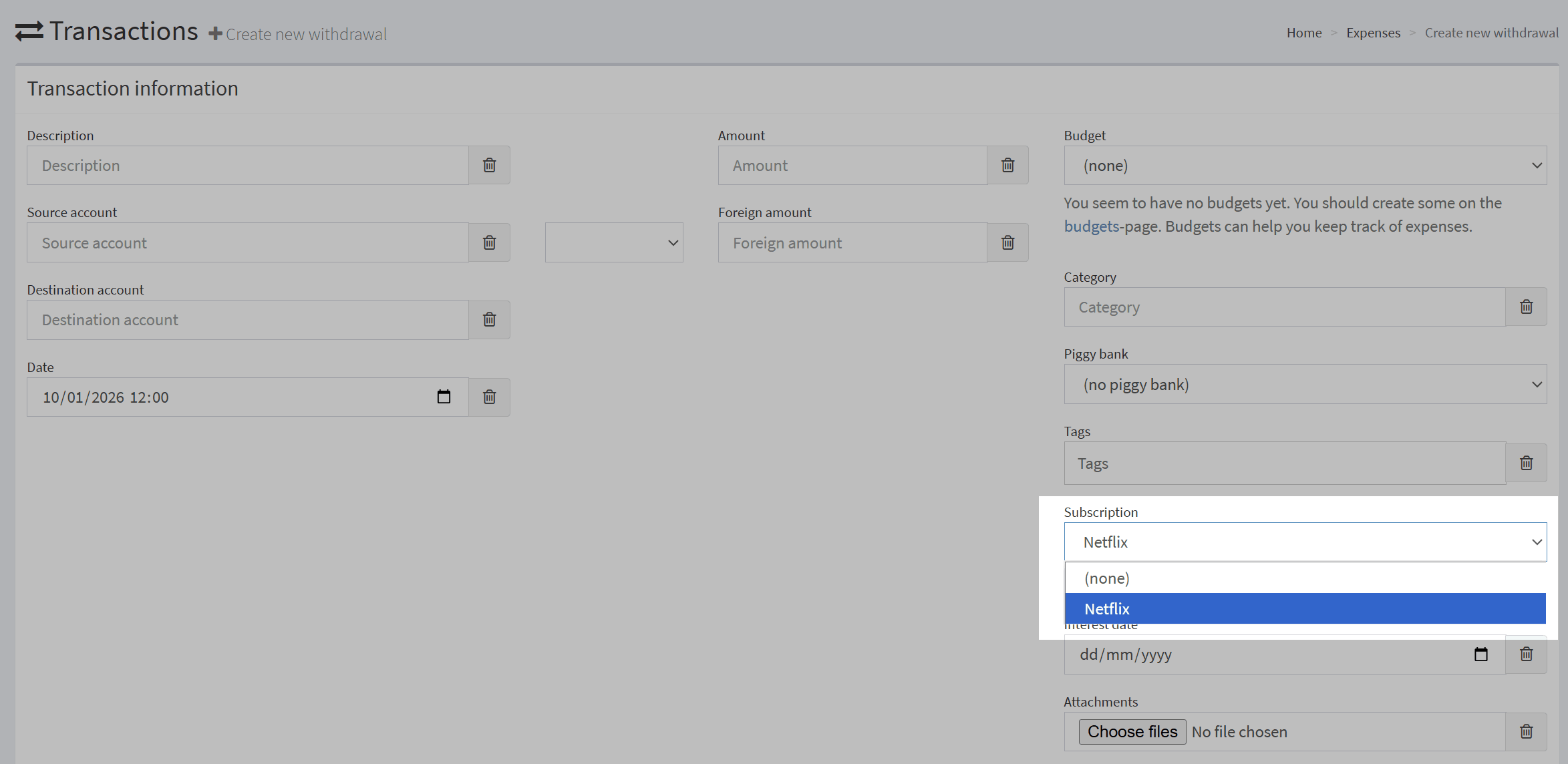
Note that it doesn't matter if the amount is not right for the subscription (too much or too little). Firefly III will still link the subscription to the transaction. It's also okay to link transactions to a subscription that fall outside the subscription's schedule.
See subscriptions being paid
On the subscriptions page, you can see that the transaction is linked to the subscription, and the subscription is now paid. You can also see the next expected payment date.
Look it up in reports
If you go to the reports page, you can see the subscription in the "default financial report". The monthly overview features all subscriptions of that period and whether they were paid.
